
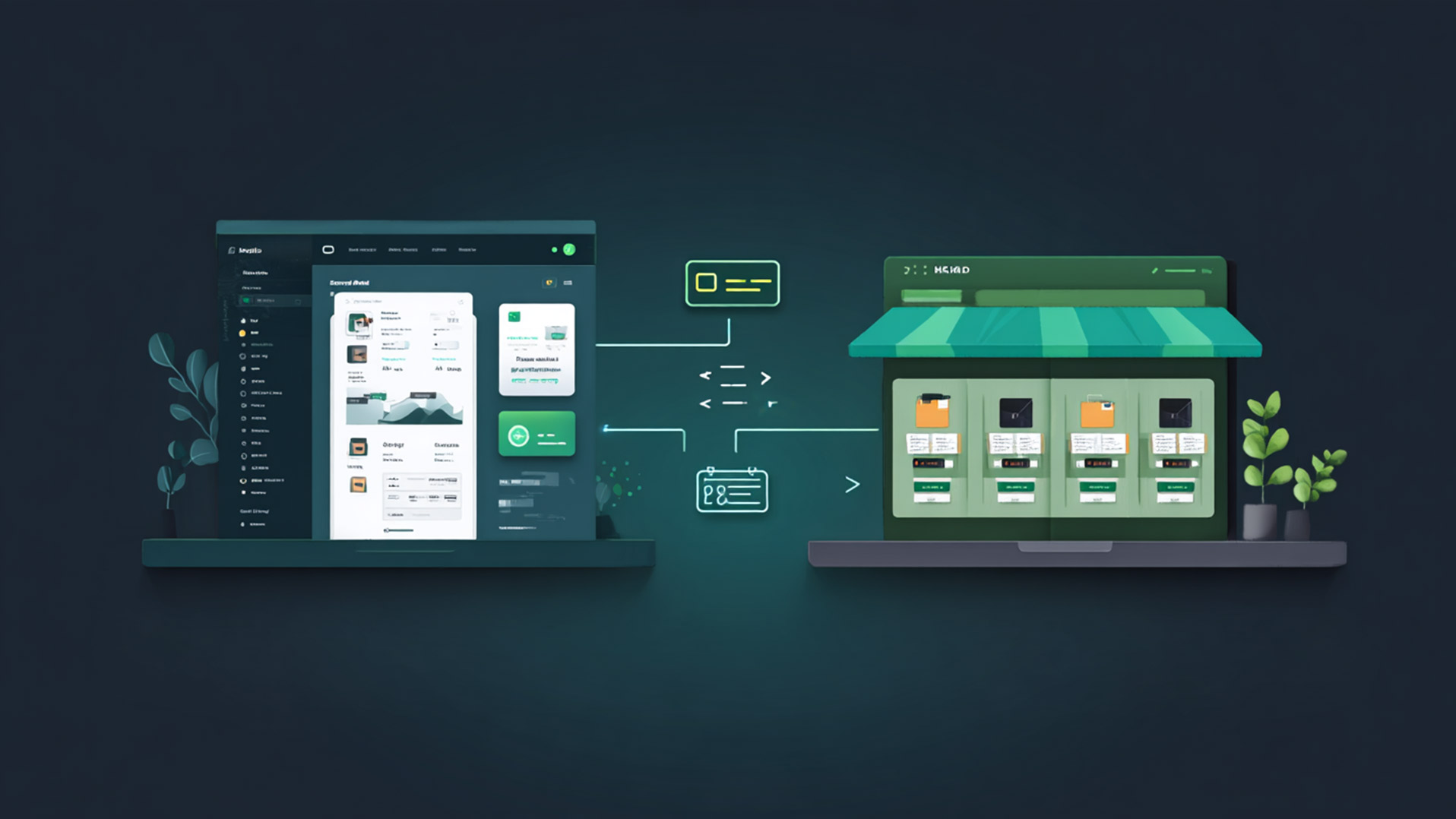
How to Handle Stock Synchronisation
If you take online sales seriously at all, keeping your stock data accurate is non-negotiable. And this is exactly where many e-shops fall short.
A typical scenario: you manage stock in Pohoda because that is where you handle accounting and invoicing. Your e-shop runs on WooCommerce, where customers see product availability. But data between these two systems is transferred manually — someone occasionally exports an XML file, uploads it to the e-shop, and by then the stock has already changed. Or it does not get done at all and the e-shop displays figures from last week.
The consequences are predictable. A customer orders an item that is no longer in stock — you deal with cancellations and apologies. The opposite case — stock is available but the e-shop shows zero — means lost revenue you may never even notice.
Veruno solves this with the Veruno Pohoda module.
Three Ways to Import
1. Manual XML Upload
Pohoda can export stock to an XML file (File → Data Communication → XML Export). You then upload this file in the Veruno admin panel under Pohoda → Stock. Veruno processes the XML, imports the stock cards and updates data in the e-shop.
Manual import works well for initial setup or one-off actions. It does the job, but it requires someone to remember — and that is exactly the step that tends to get skipped over time.
2. Automatic Synchronisation via Online Shop
Pohoda includes an online shop feature that can push stock cards to a specified endpoint. To tell Pohoda what data to send — which warehouse, which price level, which stock filter — you need to configure the online shop in Pohoda settings.
Pohoda configuration (Settings → Online Shop → Add shop):
Type:      Generic online shop
URL:       https://veruno.cz/api/pohoda/ishop/{tenant_code}
Username:  (set in Veruno admin)
Password:  (set in Veruno admin)
Warehouse: Import (or your specific warehouse name)
You generate the credentials in the Veruno admin under Pohoda iShop. Once configured, Pohoda sends the current stock state as XML automatically. Veruno processes the data, updates the stock, and if your e-shop is connected via the Veruno Connector (WooCommerce plugin), the changes are reflected in the e-shop immediately.
Set it up once, then leave it running. No more "don't forget to upload the XML".
3. Automation via Command Line and Task Scheduler
If Pohoda's online shop feature does not send data at the required intervals automatically, the entire process can be fully automated using two files and the Windows Task Scheduler — with no involvement from the accountant.
Step 1 — XML request for stock export
Create a file stock_request.xml which Pohoda will use as the input request:
<?xml version="1.0" encoding="Windows-1250"?>
<dat:dataPack version="2.0" id="veruno_stock_001" ico="YOUR_ICO"
  application="Veruno" note="Stock export"
  xmlns:dat="http://www.stormware.cz/schema/version_2/data.xsd"
  xmlns:lst="http://www.stormware.cz/schema/version_2/list_stock.xsd"
  xmlns:ftr="http://www.stormware.cz/schema/version_2/filter.xsd"
  xmlns:typ="http://www.stormware.cz/schema/version_2/type.xsd">
  <dat:dataPackItem version="2.0" id="veruno_stock_001_1">
    <lst:listStockRequest version="2.0" stockVersion="2.1">
      <lst:requestStock>
        <ftr:filter>
          <ftr:storage>
            <typ:ids>Import</typ:ids>
          </ftr:storage>
        </ftr:filter>
      </lst:requestStock>
    </lst:listStockRequest>
  </dat:dataPackItem>
</dat:dataPack>
Replace YOUR_ICO and the warehouse name (Import) with the values matching your accounting unit.
Step 2 — Pohoda CLI configuration file
Create a file xml_config.ini:
[XML]
input_dir=C:\Pohoda\Veruno
response_dir=C:\Pohoda\Veruno\Response
database=C:\ProgramData\STORMWARE\POHODA\Data\YOUR_DATABASE.mdb
format_output=1
Step 3 — launch script
Create a file run_export.bat:
@echo off
"C:\Program Files (x86)\STORMWARE\POHODA\Pohoda.exe" /XML "Admin" "" "C:\Pohoda\Veruno\xml_config.ini"

timeout /t 30 /nobreak

curl -X POST https://veruno.cz/api/pohoda/ishop/{tenant_code} ^
  -H "Content-Type: text/xml" ^
  -u "ishop_user:ishop_password" ^
  --data-binary @"C:\Pohoda\Veruno\Response\stock_request.xml"
timeout /t 30 ensures Pohoda has enough time to complete the export before the data is sent to Veruno.
Step 4 — Task Scheduler
Open Task Scheduler (Win + R → taskschd.msc) and create a new task:
- Name:
Veruno Pohoda sync - Run whether user is logged on or not + Run with highest privileges
- Trigger: daily from 8:00, repeat every 4 hours for 8 hours
- Action: run
C:\Pohoda\Veruno\run_export.bat
Once saved, synchronisation runs automatically every 4 hours — no user interaction, no need for Pohoda to be open at that moment.
What the Module Handles
Stock card import — Veruno processes the XML with stock data and stores individual items: code, name, quantity, prices, units and flags (e-shop, new, sale, recommended). On repeated imports, only genuinely changed items are updated — unchanged records are skipped.
Price levels — Pohoda supports multiple price groups (retail, wholesale, individual). Veruno imports all of them and lets you configure which price level is used as the selling price for the e-shop. Typically the "Retail" price list in EUR is used for international e-shops.
SKU mapping — Pohoda codes do not always match e-shop SKUs. Veruno provides a mapping table that translates Pohoda codes to e-shop SKUs. It also supports a multiplier — if Pohoda tracks stock in cartons (for example, boxes of 10 units), the mapping automatically recalculates quantities to individual units.
Stock comparison — the admin panel displays a clear diff between the stock state in Pohoda and the stock state in the e-shop. At a glance you can see where quantities differ, what is missing on either side.
Order export — orders from the e-shop can be exported back to Pohoda as received orders, including VAT, shipping and SKU translation via the mapping table.
Pohoda HUB — When You Have Multiple Warehouses
This does not apply to most e-shops, but if you operate multiple legal entities (multiple company IDs) and need to consolidate data from several Pohoda instances into one e-shop, Pohoda HUB handles that.
HUB is an admin-level extension that aggregates stock from multiple sources into one central warehouse. Each legal entity sends data from its own Pohoda instance. HUB identifies them by company ID, sums quantities across sources and distributes the result to one or more e-shops:
Pohoda company A (ID: 05343445) ─┐
                                  ├→ HUB → aggregation → E-shop 1
Pohoda company B (ID: 12345678) ─┘                    → E-shop 2
If you have one company and one e-shop, HUB runs in the background and you never need to think about it.
What It Means in Practice
Up-to-date stock in your e-shop — customers see the actual stock level, not yesterday's manual export. Synchronisation runs automatically at configured intervals.
Time savings — the repetitive cycle of manual XML exports and uploads is eliminated. Once configured, everything runs on its own. More importantly — it removes that Friday evening moment when you realise you have not updated stock all week.
No additional licences — you do not need Pohoda SQL or E1. The online shop feature and command-line interface are available in the standard Pohoda Komplet version. On the Veruno side, the Pohoda module is included in the platform.
Data consistency — archived items (manually removed from the catalogue) are never overwritten by an import. Only genuinely changed records are updated on each import run.
Summary
The Veruno Pohoda module addresses one of the most common pain points for smaller e-shops — manually transferring stock data between Pohoda and the e-shop. It offers three approaches: manual XML upload for getting started, automatic synchronisation via Pohoda's online shop feature, and fully automated export via command line and Windows Task Scheduler. It works with the standard version of Pohoda, requires no additional licences, and for businesses with multiple legal entities, Pohoda HUB handles aggregation.
If your stock levels between Pohoda and your e-shop are out of sync, this is how to fix it — once and for good.